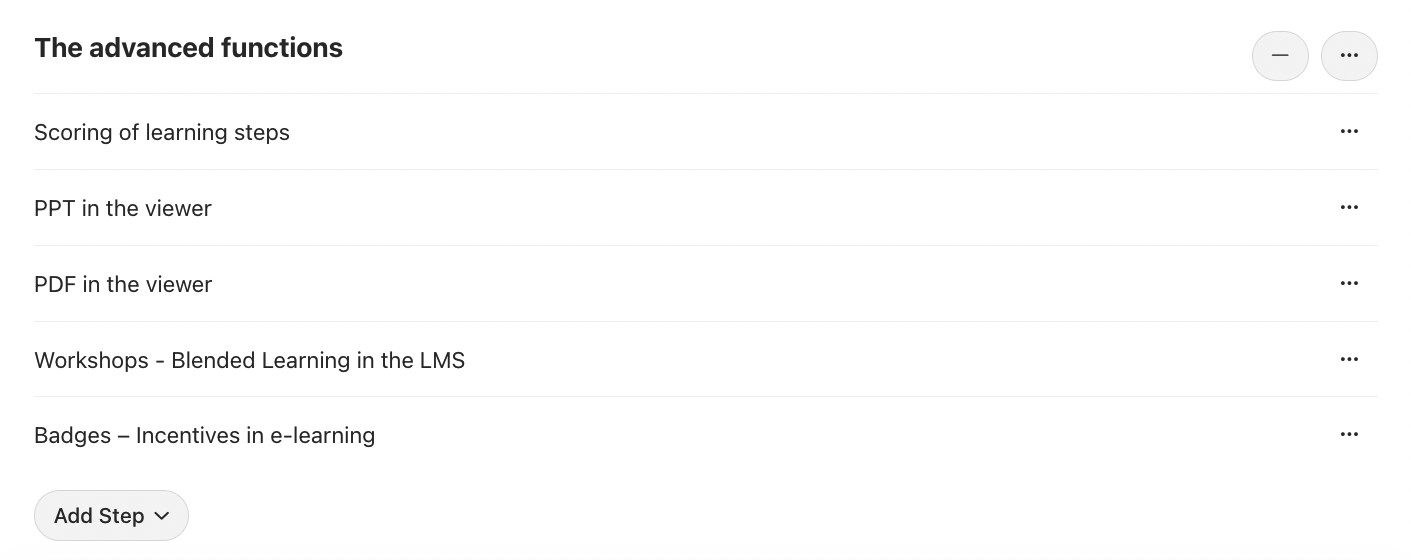
The three different display options are presented below.
1. Blocks
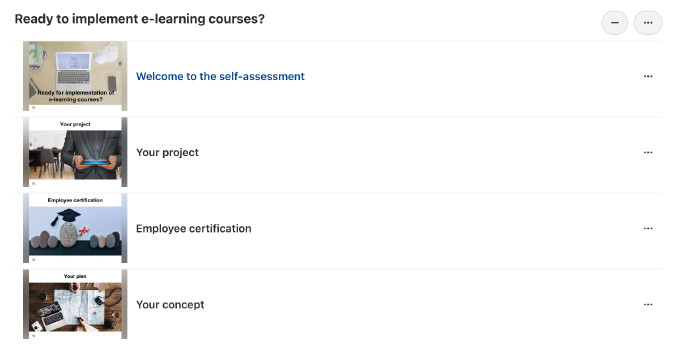
The visual option! Insert a thumbnail image to make the module overview visually appealing. PowerPoint slides or other images that are displayed in the document viewer in the learning step are adopted directly as thumbnails. This also applies to videos, regardless of whether they are uploaded directly to Coursepath or integrated with an iframe.
You can also manually select a different thumbnail image. To do this, in Edit mode for the video, click the pencil icon in the step and select "Upload image". You can then add the desired image.
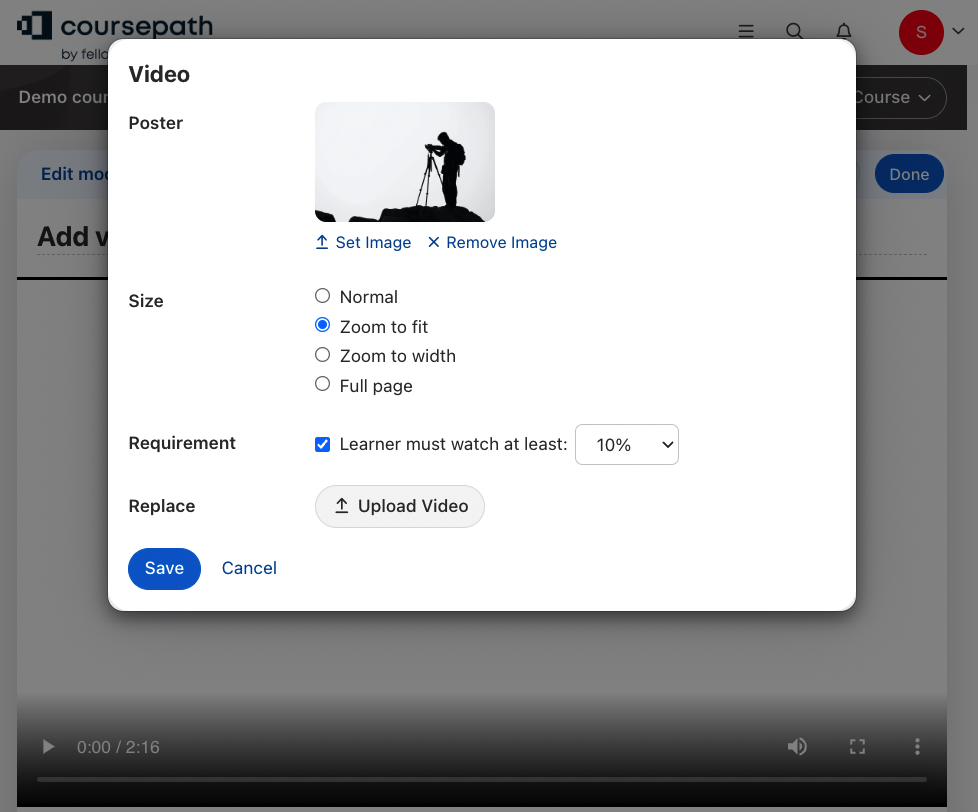
Adding a thumbnail for videos
Block view in the table of contents
 2. Collapsed view
The compact option! Would you rather have a brief overview of the modules in the table of contents? No problem! Select the Collapsed view to hide the individual learning steps in the table of contents.
As a course author, you will of course still have an overview, but the course participants will only see the higher-level module in the table of contents. This view is identified by the "Play" icon after the module name.
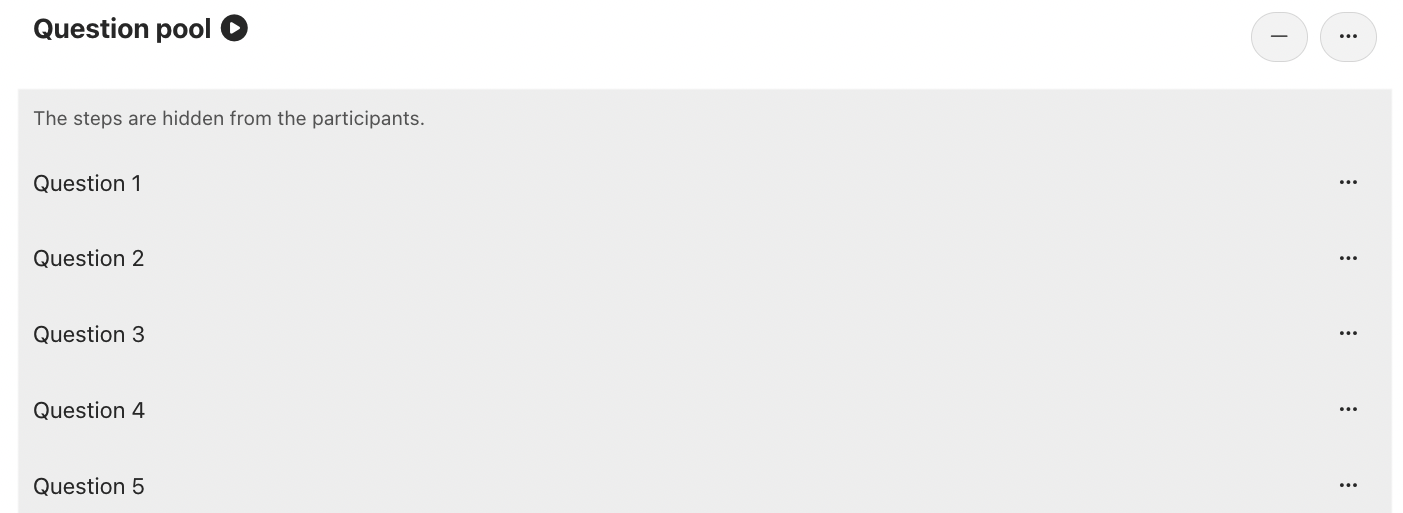
The compact collapsed view from the participant perspective (above) and the author (in edit mode, below)
3. List
A traditional list display